What Is Reconciling in Goodbudget?
Reconciling allows you to review your transaction data to check for accuracy. You compare your data against a set of external documents – like bank statements – to make sure your data is correct.
Reconciling is a great way to spot inaccurate data, or catch fraudulent activity. But it’s frustrating when you can’t finish your reconciliation in Goodbudget.
We’ll cover a few reasons why that might be happening, and how you can resolve them.
How the Reconcile Tool Works
The Reconcile tool compares:
- Previous Balance (last reconciled statement balance)
- Statement Balance (from your next bank statement)
Your Left to Clear amount moves closer to zero as you mark transactions as cleared. You’ll clear transactions only if they appear on your statement.
- When Left to Clear = $0.00, your reconciliation is complete.
All cleared transactions become Reconciled.
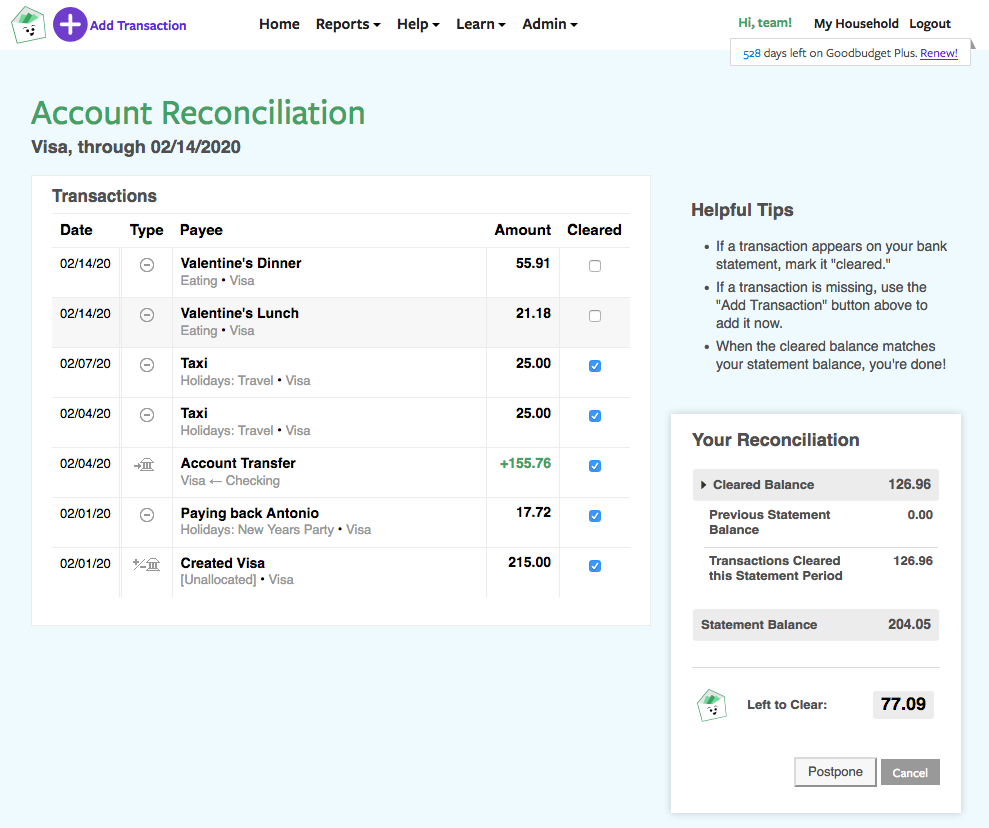
If the amount does not reach zero, something doesn’t match.
Why You Can’t Complete a Reconciliation
If your Left to Clear amount won’t hit zero, check the following:
1. Transaction Data Doesn’t Match Your Bank Statement
Your transaction data must exactly match your bank statement in order to finish your reconciliation.
What to do when your Left to Clear won’t reach zero:
- Download or open your official bank statement from your bank’s website.
- Compare it line by line with your Goodbudget Account.
- Fix any discrepancies you find.
Here’s What to Look out For:
- Missing transactions
- Incorrect amounts
- Duplicate transactions
- Transactions added to the wrong account
Even a few cents difference will prevent you from finishing your reconciliation.
2. You Cleared Transactions That Aren’t on Your Statement
Some transactions on the Account Reconciliation screen should not be cleared. Even though they’re on the screen, they may not be on your current bank statement.
These could be transactions that are:
- Pending in your online bank
- Cleared, but will appear on your next statement
If you mark them as cleared in your current reconciliation, your Left to Clear won’t reach zero.
Fix:
Only clear transactions that appear on the current statement you’re reconciling. Afterward, return to your Account and re-clear transactions that you unchecked earlier.
3. Check Your Statement Information
Sometimes the issue isn’t your transactions — it’s the statement details.
Take a moment to double-check these fields located on the Account Reconciliation screen:
- Statement Balance
- Statement Date
- Previous Balance
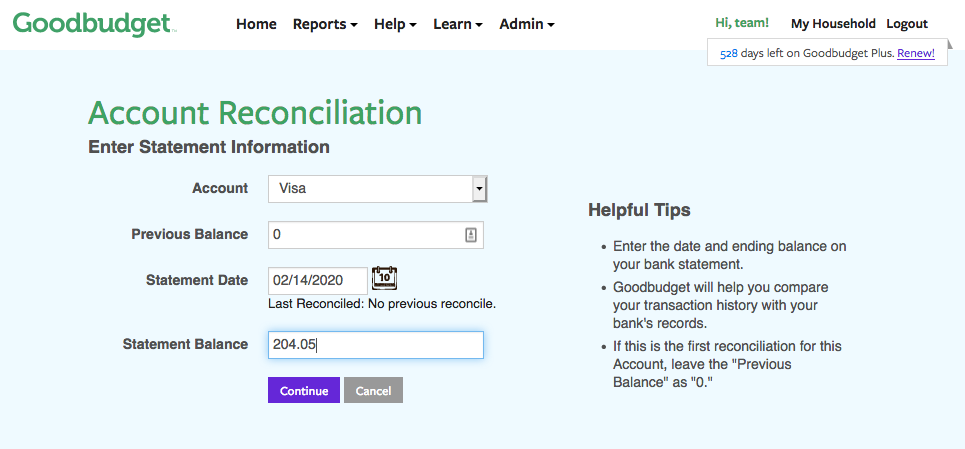
Even being off by a single cent can prevent you from being able to complete your reconciliation.
A note about Previous Balance
- Goodbudget automatically populates the Previous Balance for Accounts that have been reconciled before.
- If this is your first time reconciling the account, you’ll need to enter 0.00 as the Previous Balance.
Why? Because there’s no earlier statement for Goodbudget to compare against yet. If you enter anything other than zero the first time, the reconciliation won’t be able to complete.
Tips for Success
Reconciling isn’t complicated, but it does take practice. Here are a few things to keep in mind that can help make reconciling easier.
Reconcile One Statement at a Time
You might be tempted to reconcile multiple bank statements at once, but this is a mistake!
The Reconcile tool is designed to work with a single, real-life bank statement. Working statement by statement helps you:
- Limit the number of transactions you’re reviewing
- Spot missing or duplicate transactions more easily
- Identify incorrect amounts faster
Use a Statement Provided by Your Bank
Using the Statement Balance and Statement Date provided by your bank is for verifying your data. Always use the balance and date on your bank statement instead of estimating figures.
When you use an actual bank statement, you:
- Ensure your Goodbudget transactions are accurate
- Verify your Goodbudget current and cleared balance match what’s visible in your bank
- Help prevent fraudulent activity
If This Is Your First Reconciliation, Start with Your Oldest Statement
If you’ve never reconciled this account before and have several months of data:
- Start with your oldest bank statement first.
- Complete that reconciliation fully.
- Move forward one statement at a time until you reach the current month.
Reconciling in order ensures:
- Your balances build correctly from month to month
- Your Previous Balance stays accurate
- Errors don’t carry forward unnoticed, preventing you from completing future reconciliations
First-Time Setup Reminder
On your very first reconciliation, enter 0 into the Previous Balance field.
*This article was written by humans, restructured for scannability using GenAI, and reviewed by humans.