Auditing your budget is an important practice when it comes to keeping your Envelope and Account balances accurate. But sometimes you just need to find a transaction because you want to add a tag, or update the Payee. That’s when Advanced Search comes in handy.
Advanced Search Filters
You can filter your transaction list using one or multiple variables:
- Keywords: Search by Payee or Notes.
- Categories: Search by specific Envelope or Account.
- Details: Search by Amount, Date, or Check #.
- Transaction Type: Expense/Credit, Transfers (Account/Envelope), Fill from Available, Income, Debt Payment, or Interest/Fees.
- Status: Pending, Not Cleared/Reconciled, Need to Confirm, Cleared, or Reconciled.
- Tags: Filter by the specific transaction tags you’ve added.
How to Use Advanced Search (Web)
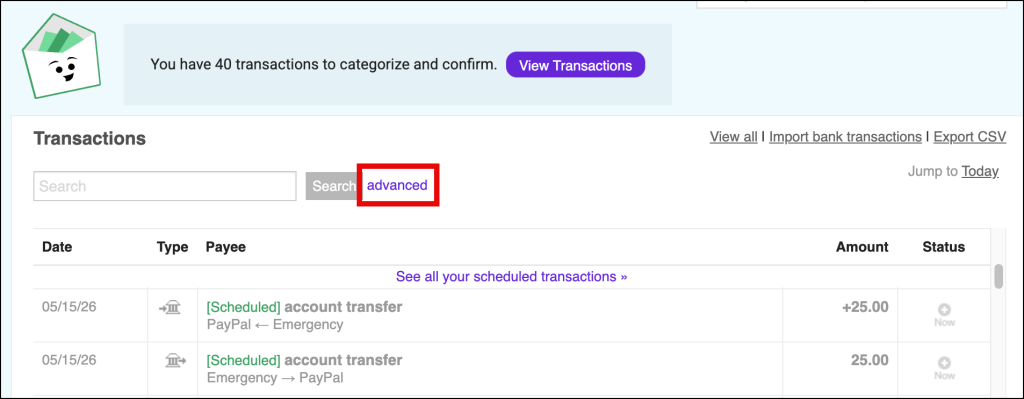
- Navigate to your Transaction list.
- Click the purple Advanced search link at the top.
- Fill in the fields or select from the dropdown menus to set your filters.
- Tip: Use multiple variables (e.g., Envelope + Amount) to narrow your results.
- Click Search.
When to use Advanced Search
You can use Advanced Search when you want to:
- Bulk Edit: Find multiple transactions that you plan to rename or edit.
- Audit Status: Identify transactions that are not yet Cleared or Reconciled.
- Filter by Type: Isolate specific movements like Transfers or Income.
- And more!
Search on iPhone and Android
Search is available on mobile, but offers fewer filters than the web version.
iPhone (iOS)
- Open the Transactions tab.
- Tap the Search icon (magnifying glass) in the upper left.
- Filter by Keyword, Amount, or Date.
Android
- Open the Transactions tab.
- Tap the Search icon (magnifying glass) in the upper right.
- Search by Keyword, Amount, or Check #.
- Tap Advanced Search to add filters for Envelope, Account, and Date.
*This article was written by humans, restructured for scannability using GenAI, and reviewed by humans.