Available money (formerly called Unallocated) is money that does not have a job yet.
The money actually exists in your Accounts so you can use it for spending, but it’s not in an Envelope.
Here’s how Available is calculated:
Available = All your Account money − All your Envelope money
Quick Summary
- Available money is unassigned money.
- It goes up when you add income.
- It goes down when you put money into Envelopes.
- You do not have to use it right away.
Where Does Available Money Come From?
1. Income You Add
When you add income, you have two choices:
- Put it straight into Envelopes, or
- Leave it unassigned (it goes to Available).
If you do not assign the income to your Envelopes, it goes to Available.
This is helpful if you want to wait and budget later. If you receive multiple incomes, you can pool them in your Available for a later date too.
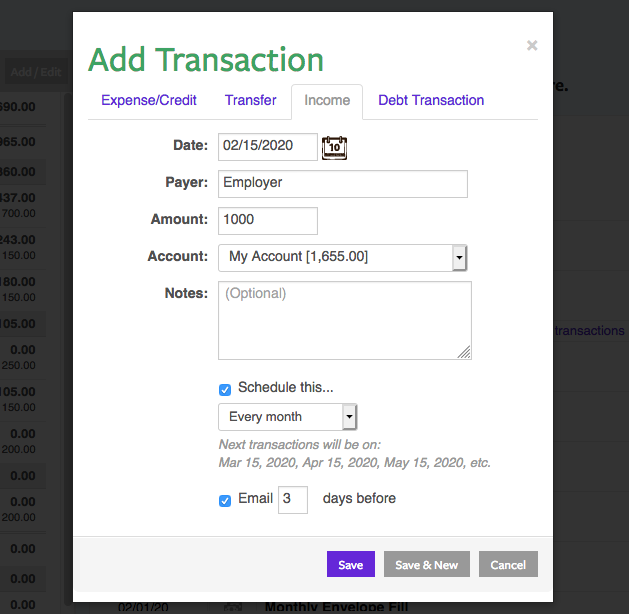
- Click Add Transaction
- Choose the Income tab
- Enter and save
- Tap the Add Transaction button (the square with a pencil) in the top-right corner
- Tap Type > Add Income
- Fill out the Amount and Payer fields
- Tap the Available button to keep your money unassigned
- Tap Save to post your income
- Tap the Fill Envelopes button (the Envelope with the arrow) in the top-right corner
- Enter who you receiver your paycheck from
- Use the How to fill Envelopes menu to select Keep Available
- Enter your income Amount
- Tap the checkmark icon at the top-right to post your income
2. Adding or Editing Accounts
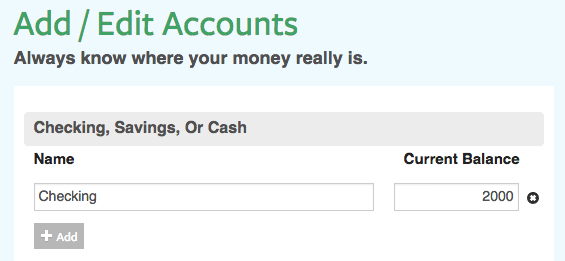
When you change an Account, you change how much money you have to budget.
The change automatically adjusts Available until you use it to fill your Envelopes..
Easy examples:
- Add a $500 Checking Account → Available goes up $500
- Add a Credit Card with a $500 balance → Available goes down $500
(Goodbudget sets that money aside to pay the card.) - Add a Debt Account (like a mortgage) → Available does not change
(Debt Accounts are off-budget.)
3. Deleting Envelopes
If you delete an Envelope that has a balance, the money inside goes back to Available.
Example:
- Delete an Envelope with $45 → Available goes up $45
- Delete an Envelope with -$45 → Available goes down $45
- Delete an Envelope with $0 → No change to Available
4. Imported Transactions
Sometimes transactions are imported without an Envelope.
- If a $50 expense is imported with no Envelope, Available goes down $50
- When you assign it to an Envelope and confirm it, Available updates
Positive imported transactions (income) always go to Available and make it go up.
What Can I Do With Available Money?
Available money has no job yet. You get to decide what to do with it.
1. Put It Into Envelopes
This is the fastest way to use it.
- Click Fill Envelopes
- Choose the Available tab
- Fill your Envelopes
- Use the Choose a Quick Fill menu to apply the same changes to all of your Envelopes
- Add money to Envelopes one at a time by selecting a Fill amount from the dropdown menu next to each one
- Click Save when you’re done
- Tap the Add Transaction button (the square with a pencil) in the top-right corner
- Tap Type > Fill from Available
- Fill out the Description field
- Fill your Envelopes
- Use the Choose a Quick Fill to apply the changes to all of your Envelopes
- Tap on each Envelope individually to choose your Fill option
- Tap Save when you’re done
- Tap the Fill Envelopes button (the Envelope with the arrow) in the top-right corner
- Tap From Available
- Fill out the Description field
- Tap on each Envelope individually to choose your Fill option
- Tap the checkmark icon at the top-right to post your Fill
2. Wait and Budget Later
You do not have to assign it right away.
If you get small or irregular paychecks, you can let them collect in Available.
When you are ready, you can put the money into your Envelopes for spending.
3. Build a One-Month Cushion
A one-month cushion means you have enough Available money to fill all Envelopes at the start of the month.
This helps you:
- Fill Envelopes all at once
- Save new income for next month
After that, you can move extra money into a Savings or Goal Envelope.
Frequently Asked Questions
Can I edit Available directly?
No.
Available is automatic. It is based on:
- Your Checking, Savings, and Cash Accounts
- Your Credit Card balances
- Your Envelope balances
If Available looks wrong:
- Check your Account balances
- Add missing income
- Move money between Envelopes and Available if needed
Why is my Available red / negative?
This usually means you put more money into Envelopes than you actually have in your Accounts.
To fix it:
- Move money from Envelopes back to Available
- Or fix an incorrect Account balance
Is Available the same as savings?
No.
Available is money without a job.
Savings usually live inside a Savings Envelope.
*This article was written by humans, restructured for scannability using GenAI, and reviewed by humans.